How to set up AI search performance reporting in Google Search Console (2026)
How to set up AI search performance reporting in Google Search Console: find the worldwide generative AI report, baseline it, and act on the page data.
Last verified · 2026-10-23 · by Moe Ameen
Published 2026-08-31 · Updated
Short answer
To set up AI search reporting in Google Search Console, open Performance and pick the Generative AI report. It counts impressions from AI Overviews and AI Mode, with a separate report for Discover's AI features, and it has no clicks, positions or queries. Export it by page and country each month, mark the August 13 to 17, 2026 logging error, and turn the cited-page list into a content brief.
Key takeaways
- The report shows impressions only. No clicks, CTR, position or query data.
- Google rolled it out to all sites worldwide as of August 31, 2026.
- An empty report usually means too few AI impressions, or a site excluded in Settings.
- Annotate August 13 to 17, 2026: a logging error lowered reported impressions.
- Export by page and country on a fixed cadence and group cited pages by topic.
As of late August 2026, Google's generative AI performance reports (a Search report covering AI Overviews and AI Mode, plus a separate report for Discover's AI features) are available to all sites worldwide. Google finished the phased rollout on August 31, 2026. That makes AI-search visibility something you can finally report on with first-party data instead of inference.
But the report is presence-only: it shows impressions, not clicks, not position, not the queries behind them, and the data series is short because the report is new. So "setting up reporting" is less about a dashboard toggle and more about establishing the right baseline, reading the report for what it can support, and building a repeatable cadence that turns the page data into content decisions.
This is that setup, step by step, without inventing numbers the report does not give you. The early steps get you into the report and calibrate expectations; the middle steps establish a baseline that survives the rollout's quirks — a short series, a known August logging error, sites with too little data — and segment the data into the two cuts that matter; the last steps turn the read into a standing report and a content brief. If you also need the query side — the conversational AI Mode searches that leak into your standard report — that is a separate job covered in how to track Google AI Mode traffic in Search Console.
How do you set up AI search reporting in Search Console, step by step?
- Confirm your property is verified and eligible for data. Reporting starts with a verified Search Console property for the site (domain or URL-prefix). With the worldwide rollout complete, most properties now have the report, but one condition still gates it: Google says a site that hasn't received enough impressions in generative AI features may not see the report. So before you conclude anything, make sure the property is verified and has enough AI-search presence to register — an empty report is not proof you are absent from AI answers.
- Open the Generative AI performance report. In Search Console, go to Performance and look for the Generative AI view (separate from the standard Search results report). The Search report counts impressions from AI Overviews and AI Mode together, and Discover's generative AI features have their own report. If the view is missing, Google's help page names two causes: too few AI impressions, or a site excluded from Search generative AI features in Settings.
- Calibrate: this report shows impressions, not traffic. Before you read a single chart, set the expectation that governs everything after: the report shows impressions only. There are no clicks, no click-through rate, no average position, and no query data — Google exposes presence, not outcome. An AI impression means a link to your page was surfaced inside an AI answer; it does not mean anyone clicked. Report it as exposure, and never let it sit next to a clicks chart in a way that invites reading it as traffic.
- Establish a baseline on a short series. The report is new, so the series is short and there is little or no earlier period to compare against. Your first cycles are not measuring change; they are building the baseline later cycles will measure against. Snapshot the property-level total and the page-level breakdown now, date it, and resist reading a trend into the first couple of months of a short series.
- Annotate the August 2026 logging error on your timeline. Google disclosed a logging error that decreased impressions in the Search generative AI report for data from August 13 to August 17, 2026 — a data-logging fault, not a real drop in your AI visibility. Mark that date on any baseline or trend you build. A dip beginning around mid-August should be flagged as a known artifact, or you will report a decline that never happened and act on a problem that does not exist.
- Segment by page to find your AI-cited assets. Sort the report by page. This is the actionable core: the list of URLs accruing AI impressions is a ranked read of which of your assets Google's AI surfaces actually reach for. Note that property-level and page-level totals are not additive — two of your URLs in one AI answer count as a single property impression but can each count at the page level — so pick one level per report and stay there. The page list, not the aggregate, is what tells you what to make more of.
- Add the country cut to spot geo and coverage gaps. Break the same data down by country (and device, in the Search view). A page winning AI impressions in one market but not another is a localization or coverage gap the aggregate total hides. For multi-market sites this cut often surfaces the fastest wins — a topic already proven to earn AI presence somewhere, missing where you also compete.
- Build a repeatable report and turn the page list into a brief. Google documents an export button for the report's chart and table data, but its help page describes no API or BigQuery access for this report, so your recurring artifact is an export taken on a fixed cadence (monthly suits most teams), kept separate from your organic impressions rather than summed with them. Then act: group the cited pages by topic to get two lists — topics AI already cites you for (proven demand to go deeper on) and topics you publish about that earn no AI presence (gaps to cover). That grouped list is your content brief for the next cycle. Fold it into your reporting the way you would any channel; creating social media reports with AI covers the wider reporting workflow.
What does the Search Console AI report not show you?
- Impressions only — no clicks, CTR, position, or queries. The report tells you that you appeared inside an AI answer, not whether anyone clicked or where you ranked in it. Pair it with your standard Performance report for the click side.
- AI Overviews and AI Mode are combined. There is no native way to split AI Mode impressions from AI Overviews in this report — they are reported together. Any tool promising a clean AI-Mode-only number from native GSC is estimating.
- Short history. The report is new, so there is little past data to compare against. Build the baseline now instead of expecting older data to appear.
- The August 13 to 17, 2026 logging error dents the data. A decrease in reported impressions on those dates is a logging fault, not a real drop — annotate it, do not chase it.
- Absence can mean low volume, not zero. A missing view may mean the property logged too few AI impressions to show, or that the site was excluded in the Search generative AI control — not that you are invisible.
- Property and page totals are not additive. Two of your URLs in one AI answer count as one impression at the property level but can each count at the page level, so the property total will not equal the sum of page totals. Report at one level and stay there.
Where does Kompozy fit once the report tells you what to make?
The setup above ends with a specific deliverable: a page-and-country list of the exact assets Google's AI surfaces already cite you for, plus the topics where you earn no AI presence yet. That list is a content brief, and it repeats every reporting cycle — which is where the workflow stalls, because Search Console can tell you what to double down on but produces none of it. Kompozy is that production layer: a full AI content generation and multi-platform publishing engine, not an analytics tool, and it does not replace the reporting loop — it clears the queue the loop generates. Take a proven-demand page from your report and drop the topic into Kompozy: from one Persona Brief it builds a deeper, more liftable Blog Article and long-form text that give AI answers more of the quotable source they already pull from you, plus brand-exact Carousel posts and Quote Graphics that restate the load-bearing facts as discrete units, and a Persona Short where your named expert says it on camera. For the country gaps the report surfaces, the same brief spins format and market variants without re-establishing your voice each time. Autopilot then schedules and fans the set across up to nine social platforms plus your blog and newsletter behind a per-post review gate, so one true claim lands on several independent surfaces — the cross-source corroboration AI engines weigh when deciding what to cite. The honest scope: no tool can force an AI Overview to cite you or move the impression number by decree; what Kompozy removes is the production ceiling that makes acting on a monthly report impractical by hand, so measurement and response run at the same speed. Starter ($199/mo, 5,500 credits) fits a solo operator working one topic cluster from the report; Pro ($499/mo, 18,000 credits) suits a brand producing across every platform each cycle; Enterprise is available through Contact Sales for agencies reporting and feeding AI visibility across multiple clients.
What does this look like in Kompozy?
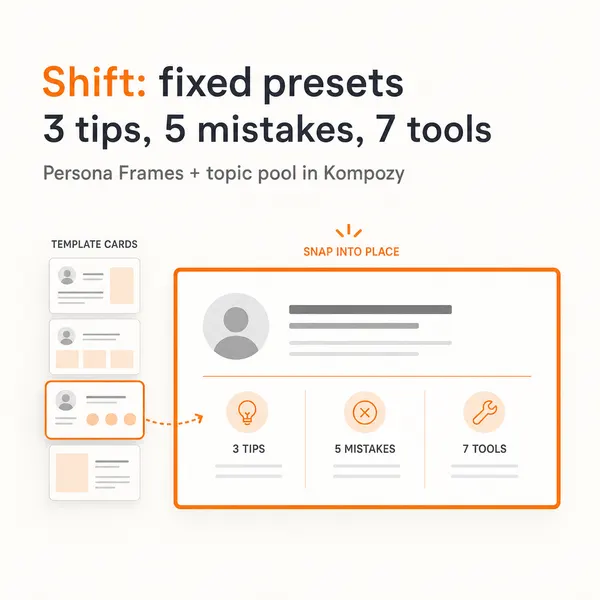
A real carousel generated in the Kompozy workspace, shown as an example of the format. It was not made for this guide or for any customer.


Who is this for, and who should skip it?
Best for:
- Content teams that want first-party data on which pages appear in AI Overviews and AI Mode.
- Multi-market sites that can act on a country-level gap.
- Anyone who already reports on Search Console and can add one monthly export.
Not ideal for:
- Teams that need AI clicks, queries or rank. The report does not have them.
- Sites with very little AI presence, which may see no data at all.
- Anyone who needs an API or BigQuery feed. Google documents only a manual export.
Frequently asked questions
Where is the AI performance report in Google Search Console?
In the Performance section, as a dedicated Generative AI view separate from the standard Search results report. The Search report shows impressions from AI Overviews and AI Mode, and Discover's generative AI features have a separate report. You can break the data down by page, country, date and, in the Search report, device.
Is the Search Console AI report available worldwide now?
Yes. Google announced it on June 3, 2026, rolled it out in phases, and says that as of August 31, 2026 it is available to all websites worldwide. A site with too few AI impressions may still see no data, so an empty report does not always mean you are absent from AI answers.
Can I export the AI report or pull it through the API?
By hand, yes. The report has an export button for chart and table data, but Google's help page describes no API or BigQuery access for it. Your recurring artifact is an export taken on a fixed cadence. The Search Analytics API and BigQuery export still cover your standard Performance data, which is where the click side lives.
Why does my property show no AI data?
Google gives two reasons: your site logged too few impressions in generative AI features, or the site was excluded from Search generative AI features in Settings. Neither means you have zero AI visibility. Confirm the property is verified and has meaningful AI-search presence, then check back before treating an empty report as a finding.
Should I opt out of appearing in Google’s AI features?
Google offers a property-level Search generative AI control that excludes your links and content from AI Overviews, AI Mode and generative AI features in Discover. Google says the control is not used as a ranking signal for other parts of Search. Most content teams stay in, because opting out forfeits a growing discovery surface — but the choice is now explicit and worth stating in your report.
How often should I report on AI search performance?
Monthly suits most content operations. Because the data is forward-only and short, a monthly snapshot of AI impressions by page (and by country) lets a baseline accumulate and gives new content several cycles to show up in the report — which is the only honest way to attribute a content decision to an AI-visibility change.
How do we know this?
On 2026-10-23 we checked the report scope, rollout date, aggregation rules, export option, opt-out control and the August logging error against Google Search Central and the Search Console Help Center. Kompozy plan details come from kompozy.io/pricing. Figures we could not confirm were removed or reworded.
Sources
- Google Search Central Blog: Introducing Search Generative AI performance reports in Search Console (read 2026-10-23)
- Search Console Help: Generative AI performance report (Search) (read 2026-10-23)
- Search Console Help: Search generative AI control (read 2026-10-23)
- Search Console Help: Data anomalies in Search Console (read 2026-10-23)
- Kompozy: Pricing (read 2026-10-23)
Related tutorials
- How to track Google AI Mode traffic in Search Console (2026)
- How to measure traffic lost to Google AI Overviews — and respond (2026)
- How to make content visible to AI search (2026)
- How to write content that performs in AI search (2026)
- How to create social media performance reports using AI (2026 workflow)